🚫 Chrome CORS Bypass Instructions
⚠️ Important Security Warning
This method disables Chrome's security features. Only use this for development and demo purposes. Never use this configuration for regular browsing as it makes you vulnerable to malicious websites.
What is CORS?
CORS (Cross-Origin Resource Sharing) is a security feature that prevents websites from making requests to other domains without permission. While this protects users, it can block legitimate API requests during development.
How to Create a CORS-Disabled Chrome Shortcut For
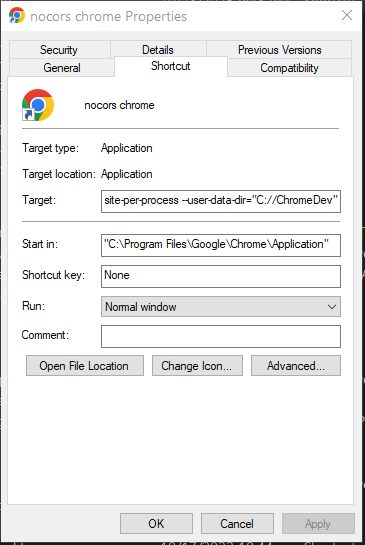
Example of the Chrome Properties dialog with CORS bypass flags
What Each Flag Does
--disable-web-security- Disables CORS and other web security features--disable-gpu- Prevents GPU-related issues that can occur with disabled security--disable-features=IsolateOrigins,site-per-process- Disables additional security features--user-data-dir="C://ChromeDev"- Uses a separate profile to avoid affecting your main Chrome installation
Alternative: Command Line Method
You can also run Chrome with these flags directly from the command line:
chrome.exe --disable-web-security --disable-gpu --disable-features=IsolateOrigins,site-per-process --user-data-dir="C://ChromeDev"
Testing the Setup
Reverting to Normal Chrome
To use Chrome normally again:
- Simply use your original Chrome shortcut or launch Chrome normally
- The modified shortcut only affects Chrome when launched through it
- Your regular Chrome profile remains unchanged and secure for web browsing.
Alternative: CORS Proxy Service
When you encounter a CORS error in the JSON Block Builder, you'll see a popup with an option to use a CORS proxy service:
Server-Side Solution (Recommended)
For production applications, always implement proper CORS headers on your server instead of disabling browser security:
Access-Control-Allow-Methods: GET, POST, PUT, DELETE, OPTIONS
Access-Control-Allow-Headers: Content-Type, Authorization, X-Requested-With
Access-Control-Allow-Credentials: true
🔒 Security Reminder
Remember to only use this CORS bypass method for development and POC purposes. Never browse the internet with these security features disabled.